HTML Live Preview: The Practical Setup Guide for 2026
Set up HTML live preview in VS Code, browsers, and online tools with this practical 2026 guide. Includes auto-reload tips and debugging advice.
You know the drill. You open an HTML file, tweak a button class, hit save, tab over to the browser, refresh, and somehow the page still looks like it's from five edits ago. Then you start wondering if the code is broken, the browser is lying, or the universe just likes making front-end work feel personal.
That's exactly where html live preview earns its keep. It cuts out the tiny but relentless friction between writing markup and seeing what it does, which matters even more now that HTML has grown from a small tag set into a living standard used across modern workflows. HTML began in 1989 with Tim Berners-Lee, the first web page went live on August 6, 1991, an early document listed 18 tags in October 1991, HTML 5 became a W3C Recommendation in 2014, and by 2019 HTML had been unified as a continuously updated living standard by W3C and WHATWG ().

If you spend your day in the editor, live preview isn't a nice-to-have. It's the difference between staying in flow and doing the save-switch-refresh dance like you're training for a keyboard Olympics event. The web platform got more complex over time too, with HTML moving from early static pages toward scripting, forms, and dynamic browser behavior, and that's why instant rendering checks became so useful for layout, semantics, and browser quirks (). For a broader look at how dev workflow choices affect momentum, see .
Why HTML Live Preview Matters in Your Daily Workflow
The first time live preview really saves your sanity is usually on something boring. A nav bar is off by six pixels, a form input wraps weirdly, or a flex container behaves like it has never met CSS before. Without preview, each tiny change turns into a little browser pilgrimage. With preview, you type, save, and the result is already sitting there, staring back at you like it knew the answer all along.
The core job is reducing friction
HTML started simple and kept expanding into a living standard that still changes the way front-end work gets done. That matters because the more tags, browser behaviors, and layout interactions you juggle, the less tolerable it becomes to wait for manual refreshes after every edit. The history of HTML makes that shift pretty clear, from early tag lists to the modern web stack that depends on fast visual checks (, ).
Practical rule: if you're touching markup more than once in a session, live preview pays for itself fast.
That is also why the workflow feels so different in practice. You stop treating the browser like a separate destination and start treating it like part of the editor. For a solo freelancer, that means fewer interruptions. For a team, it cuts down on guessing whether the issue sits in the HTML, the CSS, or the last browser tab someone forgot was still open.
The workflow pain is small, but constant
Developers do not lose hours in one giant failure. They lose them in dozens of tiny stalls. Save. Switch. Refresh. Wait. Repeat. That loop gets especially annoying when you are comparing spacing, typography, or semantic structure, because the value of the change only shows up once the page renders.
HTML live preview is the cleanest answer to that loop because it gives you a quick visual check without turning every tweak into a ritual. It is also why preview tools became part of everyday front-end hygiene, not just a convenience for beginners. If you want a more complete look at how this fits alongside the rest of a development workflow, the process notes at are a useful companion read.
Setting Up Live Preview in VS Code the Right Way
VS Code is where a lot of people start, and that makes sense. It is already open, it already knows your project, and it is usually one extension away from doing something useful. The two names you will keep running into are Live Server and Microsoft Live Preview, and they solve the same problem from slightly different angles.
Start with the extension that matches your habits
If you like the classic “open HTML file, hit a button, see it in the browser” routine, Live Server by Ritwick Dey is the familiar path. It spins up a local web server on a random port, which is the detail people often miss when they assume it is reading files directly. It is not magic, just a small server doing its job.
Microsoft's Live Preview feels more editor-native. In its marketplace listing, users can preview HTML by clicking the preview button or using the context menu, and it includes embedded preview, page history tracking, a URL bar, page search, and DevTools access (). That helps when you want the browser output close to the file you are editing without juggling separate windows all day.
The settings that matter
The detail worth remembering is the refresh behavior. Microsoft's extension lets you change auto-refresh with the livePreview.autoRefreshPreview setting, and you can opt a page out of reloads by adding the data-server-no-reload attribute to the body element. That is a useful escape hatch for pages where you want to control refresh timing yourself.
A few practical habits make the setup smoother:
- Use the preview button first. It is the quickest way to confirm the extension is running.
- Check the URL bar. If the path looks wrong, you are previewing the wrong file and chasing ghosts.
- Keep DevTools handy. When a layout looks broken, console and network checks usually tell the truth faster than guesswork.
Live Preview HTML also stretches beyond plain HTML. The marketplace listing for Live Preview HTML says it can open HTML, Markdown, XML, CSV/SSV, PDFs, images, audios, and videos concurrently, while offering real-time synchronization and responsive viewport simulation inside the workspace (). That is useful if your “HTML preview” habit has become a documentation or asset-review habit too.
Local setup also keeps your files on your machine, which matters for client work and rough prototypes you do not want in a third-party sandbox. It works offline in a local browser too, which becomes a lot more important the moment Wi-Fi gets flaky and a quick test turns into a network problem. If you are comparing that with browser-based tools, is a useful contrast for the privacy and access trade-offs.
For setup decisions around editor tooling, is a good adjacent reference if you are also trying to reduce tool sprawl.
Local Editors Versus Online Sandboxes
The local-versus-online question is really a question about what you're optimizing for. If you're building inside a real project, local tools usually win. If you're sketching an idea, sharing a bug repro, or asking someone else to look at a snippet, online sandboxes are often faster.
Local wins on privacy and offline use
A local html live preview setup keeps your code where your code already lives. That matters for freelance work, client projects, and anything with rough edges you don't want pasted into a third-party tool. It also works offline in a local browser, which is a bigger deal than people admit until Wi-Fi gets flaky and suddenly “quick test” becomes “network archaeology.”
That offline and privacy-safe angle is also one of the most overlooked parts of preview workflows. A lot of beginner content fixates on installing Live Server or clicking Go Live, but it doesn't spend enough time on why a preview sometimes doesn't reflect edits immediately, especially when caching gets involved. Community troubleshooting tends to circle back to hard refreshes and cache issues, which tells you the gap is real between a simple tutorial and daily use ().
Online wins on sharing and collaboration
Online tools like CodePen, JSFiddle-style viewers, and browser-based renderers are great when the main job is to share. A designer can inspect a snippet without installing anything. A stakeholder can open a link and comment. A developer can paste a minimal repro instead of explaining a weird margin collapse with interpretive dance.
A trustworthy online preview should also use a real security boundary. The recommended pattern is to render previewed code in a sandboxed iframe with sandbox="allow-scripts" only, which keeps the previewed HTML and JS away from the parent page, cookies, local storage, forms, and navigation (). That isolation is what makes browser-based sharing less risky than pasting arbitrary snippets into a normal page.
Local tools are my default for real work, online sandboxes are my default for proving a point fast.
If you want a tool that leans toward shareable rendered output and cross-role review, is one example of that collaboration-first direction. The right answer isn't one or the other, it's picking a default and knowing when to break it.
Wiring Up Auto-Reload with npm Tools and Watch Scripts
Once a project grows past a single index.html, editor extensions stop feeling like the whole story. You start wanting a small dev server that watches the right folders, reloads when assets change, and doesn't force you to babysit the browser every time you update a partial or stylesheet.
Use the tool that matches your project shape
For a plain site, live-server on the command line can be enough. For a project with multiple assets and build steps, tools like browser-sync, lite-server, and Vite are more comfortable because they're built around watching files and re-serving changes. The point isn't the package name, it's the behavior. You want the browser to reflect the current file state without manual intervention.
A minimal setup often looks like this in spirit:
- Script command. Start a watch task from
package.json. - Port choice. Run the server on a stable local port so you're not hunting a new one each time.
- File scope. Watch the folders that contain the files you edit.
The last bullet is where people get burned. Watchers can ignore files outside their root, which means your changes are happening, your editor is honest, and the preview is still stuck in 2023. That's not a code bug, it's a scope bug.
Keep the watched files explicit
Browser-sync is especially useful when you need to include extra paths, because the --files flag lets you tell it what to watch. That's the practical fix when your CSS, templates, or secondary HTML files live outside the default watched directory. Lite-server is simpler, while Vite's dev server is a better fit once your preview is part of a larger frontend build process.
A tidy package.json workflow usually wins over clicking through settings every day, because the command becomes part of the project itself. That matters when you're handing work to another developer or reopening an old freelance repo after two months and can't remember what you did with your life.
For anyone trying to move faster without getting lost in setup debt, pairs well with this kind of workflow thinking.
Fixing the Caching and Stale Preview Problems That Drive You Crazy
The browser is very polite about lying to you. It shows you old HTML like it's current, then makes you waste ten minutes debugging code that never had a chance. If your preview “isn't updating,” the code is often fine, the cache is just being clingy.
Start with the quickest checks
A hard refresh is the first move when the browser seems stuck. Opening DevTools and enabling Disable cache while DevTools is open is the next move if you're actively iterating and want the browser to stop getting cute with reused assets. That one setting can save a lot of false alarms when CSS or HTML changes appear delayed.
If you're using an iframe-based preview, a simple cache-busting query string is often enough to force a fresh render. Appending a timestamp or version marker to the preview URL makes the browser treat it like a new request instead of recycling an old response. It's boring, but boring fixes are usually the best ones.
Don't forget service workers and old tabs
Service workers are the part that trip people up the hardest. They can keep serving stale HTML even after you think you cleared everything, because the worker itself is still in charge of the fetch flow. When that happens, the cache isn't the only thing worth checking, the worker lifecycle is part of the problem too.
Old tabs can be just as annoying. Sometimes the local dev server is still running a page state from before a file was renamed, and the browser keeps pointing at a version of the app you thought no longer existed. That's why restarting the watcher and reopening the preview is often the cleanest fix.
If the preview looks haunted, restart the watcher before you rewrite the component.
The general habit is simple. Confirm the file you edited is the file the server is serving, then clear the browser's memory of the old response. If you want a practical debugging companion for that kind of problem-solving, fits naturally here.

Beyond Plain HTML Component and Framework Previews
The live preview habit doesn't stop at index.html. Once you've gotten used to write, save, see, it becomes weirdly painful to go back to rebuilding your UI mentally. React, Vue, Svelte, and component libraries all keep the same promise, they just wrap it in different tooling.
The mindset stays the same
In React, hot module replacement gives you a near-instant update loop while you work on components. Vue and Svelte do something similar through their own dev workflows, keeping the rendered output close to the code you're editing. The abstraction changes, but the payoff is the same, fewer context shifts and faster visual confirmation.
Storybook takes that idea and turns it into a component catalog. Instead of previewing one page, you preview individual UI pieces in isolation so designers, developers, and product people can inspect behavior without opening the whole app. That's especially useful when you need to validate buttons, cards, states, or entire component variants without the noise of app-wide routing.
Sharing previewed work gets easier
Component playgrounds like Storybook, Bit, and Plasmic make preview a team workflow instead of a solo convenience. You can isolate a component, inspect it, share it, and hand it off without asking someone to run the entire project locally. That's the same reason HTML preview tools started adding shareable outputs and two-way mapping features, people want a rendered result they can review.
If you're working in a mixed stack, the key move is to stop thinking of preview as a separate feature. It's part of the development loop, whether you're rendering raw HTML or a React component tree. The only real question is which abstraction you're rendering and how much of the app you need in the loop.

Your Practical Setup Checklist and a Faster Alternative
If you want a setup that won't waste your afternoon, keep it simple. Pick one local preview path, make sure auto-refresh works, and learn your browser's cache tools before you start blaming the HTML.
The setup that works in real projects
- Choose a default. Use a VS Code extension if you live inside the editor, or use an npm watcher if your project already has a build script.
- Confirm auto-refresh. Make sure the browser updates when the file changes, not only when you manually reload it.
- Watch the right paths. If assets live outside the default root, add them explicitly.
- Treat caching as a first-class issue. Use hard refresh, DevTools cache disabling, and cache-busting query strings when needed.
- Keep an online sandbox nearby. Use it for quick snippets, reviews, and shareable repros.
If you're looking for one workspace that combines AI code help with live previews for HTML and React components, Zemith's coding assistant fits that pattern. It's the kind of setup that matters when you want code generation, debugging, and previewing in one place instead of bouncing between separate tools.
When to upgrade your stack
A basic preview setup is enough for plain HTML and smaller jobs. Once you're working in a framework, shipping reusable components, or handing previews to people who aren't coding inside your repo, move to a framework dev server or a component preview tool. That's where the workflow stops being just fast and starts becoming maintainable.
If you're tired of juggling editor tabs, browser tabs, and random preview tools, try Zemith for the next page or component you build. It gives you a single place to write, debug, and preview, and you can see how it fits your workflow by visiting .
Explore Zemith Features
Everything you need. Nothing you don't.
One subscription replaces five. Every top AI model, every creative tool, and every productivity feature, in one focused workspace.
Every top AI. One subscription.
ChatGPT, Claude, Gemini, DeepSeek, Grok & 25+ more








Always on, real-time AI.
Voice + screen share · instant answers
What's the best way to learn a new language?
Immersion and spaced repetition work best. Try consuming media in your target language daily.
Voice + screen share · AI answers in real time
Image Generation
Flux, Nano Banana, Ideogram, Recraft + more

Write at the speed of thought.
AI autocomplete, rewrite & expand on command
Any document. Any format.
PDF, URL, or YouTube → chat, quiz, podcast & more
Video Creation
Veo, Kling, Grok Imagine and more

Text to Speech
Natural AI voices, 30+ languages
Code Generation
Write, debug & explain code
Chat with Documents
Upload PDFs, analyze content
Your AI, in your pocket.
Full access on iOS & Android · synced everywhere
Your infinite AI canvas.
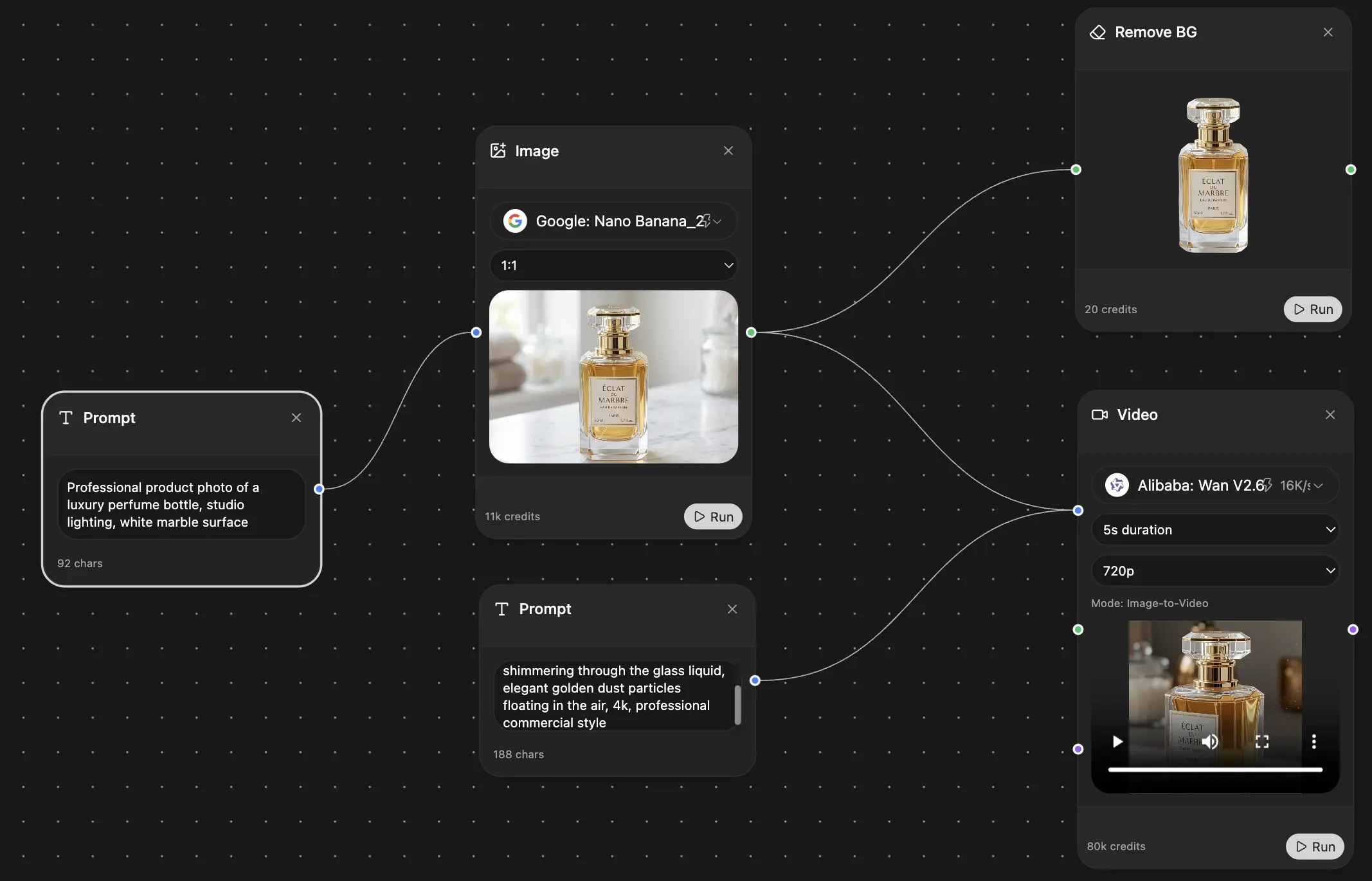
Chat, image, video & motion tools — side by side
Save hours of work and research
Transparent, High-Value Pricing
Trusted by teams at






Free
No credit card required
- 100 credits daily
- 3 AI models to try
- Basic AI chat
Plus
- 1,000,000 credits/month
- 25+ AI models — GPT, Claude, Gemini, Grok & more
- Agent Mode with web search, computer tools and more
- Creative Studio: image generation and video generation
- Project Library: chat with document, website and youtube, podcast generation, flashcards, reports and more
- Workflow Studio and FocusOS
Professional
- Everything in Plus, and:
- 2,100,000 credits/month
- Pro-exclusive models (Claude Opus, Grok 4, Sonar Pro)
- Motion Tools & Max Mode
- First access to latest features
- Access to additional offers
What Our Users Say
Great Tool after 2 months usage
simplyzubair
I love the way multiple tools they integrated in one platform. So far it is going in right dorection adding more tools.
Best in Kind!
barefootmedicine
This is another game-change. have used software that kind of offers similar features, but the quality of the data I'm getting back and the sheer speed of the responses is outstanding. I use this app ...
simply awesome
MarianZ
I just tried it - didnt wanna stay with it, because there is so much like that out there. But it convinced me, because: - the discord-channel is very response and fast - the number of models are quite...
A Surprisingly Comprehensive and Engaging Experience
bruno.battocletti
Zemith is not just another app; it's a surprisingly comprehensive platform that feels like a toolbox filled with unexpected delights. From the moment you launch it, you're greeted with a clean and int...
Great for Document Analysis
yerch82
Just works. Simple to use and great for working with documents and make summaries. Money well spend in my opinion.
Great AI site with lots of features and accessible llm's
sumore
what I find most useful in this site is the organization of the features. it's better that all the other site I have so far and even better than chatgpt themselves.
Excellent Tool
AlphaLeaf
Zemith claims to be an all-in-one platform, and after using it, I can confirm that it lives up to that claim. It not only has all the necessary functions, but the UI is also well-designed and very eas...
A well-rounded platform with solid LLMs, extra functionality
SlothMachine
Hey team Zemith! First off: I don't often write these reviews. I should do better, especially with tools that really put their heart and soul into their platform.
This is the best tool I've ever used. Updates are made almost daily, and the feedback process is very fast.
reu0691
This is the best AI tool I've used so far. Updates are made almost daily, and the feedback process is incredibly fast. Just looking at the changelogs, you can see how consistently the developers have ...